Task Management
Task Management
The Task Management feature allows you to keep track of your processes within the console. This is based on a board like structure, comparable to SCRUM or KANBAN methods that are commonly used. The entire configuration can be easily done within a matter of minutes. And you’re not limited to a set amount of available lanes or statuses for your boards. A board can be based on either priority or on rank.
For boards based on priority, the priorities for your tasks (low, medium and high) are already pre-set, so that doesn’t need to be set up.
For boards based on rank, the order of tasks in your lanes is based on the ranking in the tasks. This is a value between 0 and 100, which can be edited.
This feature is mainly designed in a way that your tasks are created automatically as part of the output of your Flow Designs. In addition to this automated process, you’re also able to create them manually in the console.
How to create a task board
The Task Boards display the created Tasks that are linked to them. Go to [Task Management → Task Boards] for an overview of the available boards. Just click the [Details] button of the board, to see which Tasks are on there. A completely set up board can look as follows:
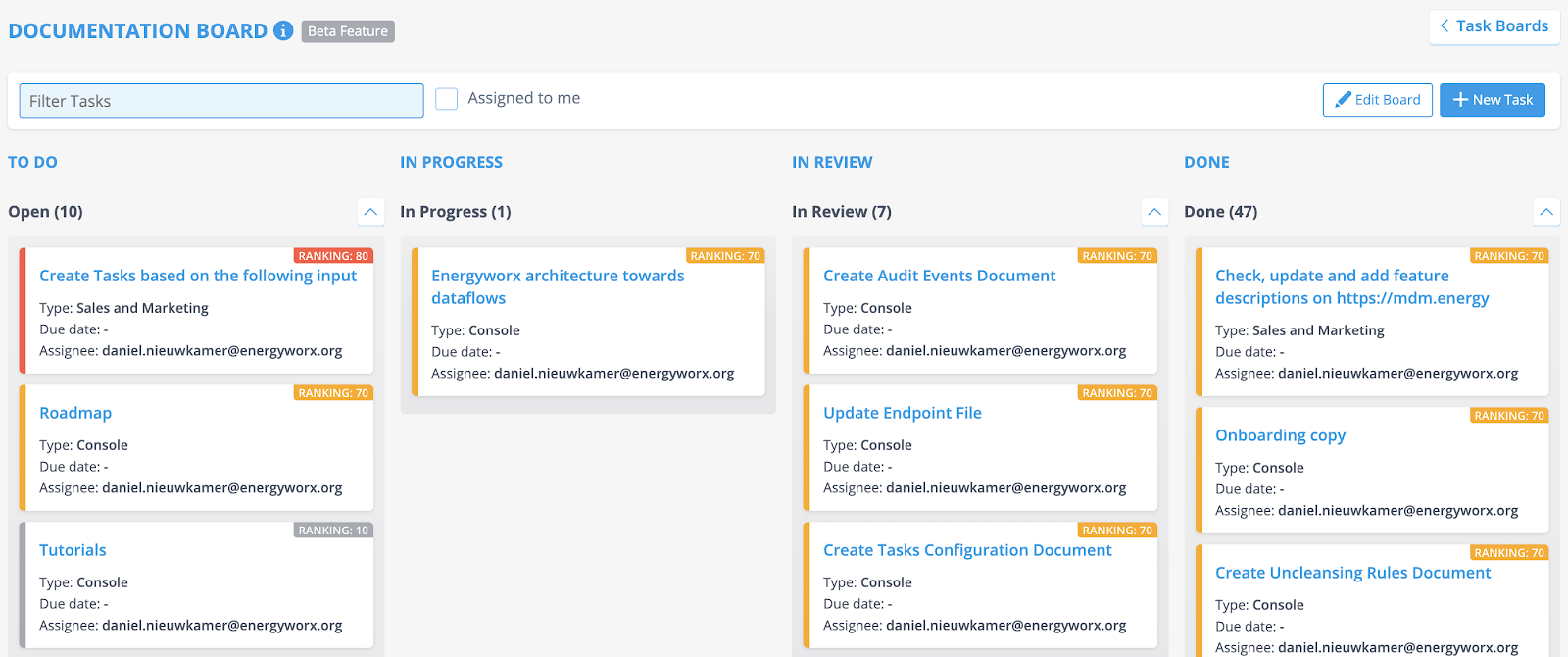
Creating new boards is done by taking the following steps:
- Go to [Task Management → Task Boards].
- Click the [+ Create] button.
- Fill in the Name and Description fields.
- Set the Mode to either Ranking or Priority, by using the toggle button.
[Note: When mode is set to Ranking, you also have to set up the Ranking Colors (slider) as well as the Minimum and Maximum Ranking (fields).] - Click the [+ Add Lanes] button to add lanes to the board.
- Fill in the Name field and use the dropdown menu to select a Status. Click [Add] afterwards.
- Click [Save] when you’re done.
[Note: The amount of lanes that can be added is equal to the amount of available statuses.]
Editing or deleting a board can also be done. Go through the following steps to either edit or delete a board:
- Go to [Task Management → Task Boards].
- Click the [Details] button of the board.
- Click [Edit Board]. All the lanes of the board can now be edited or deleted. Expand the board name section to make changes to the Name and Description fields.
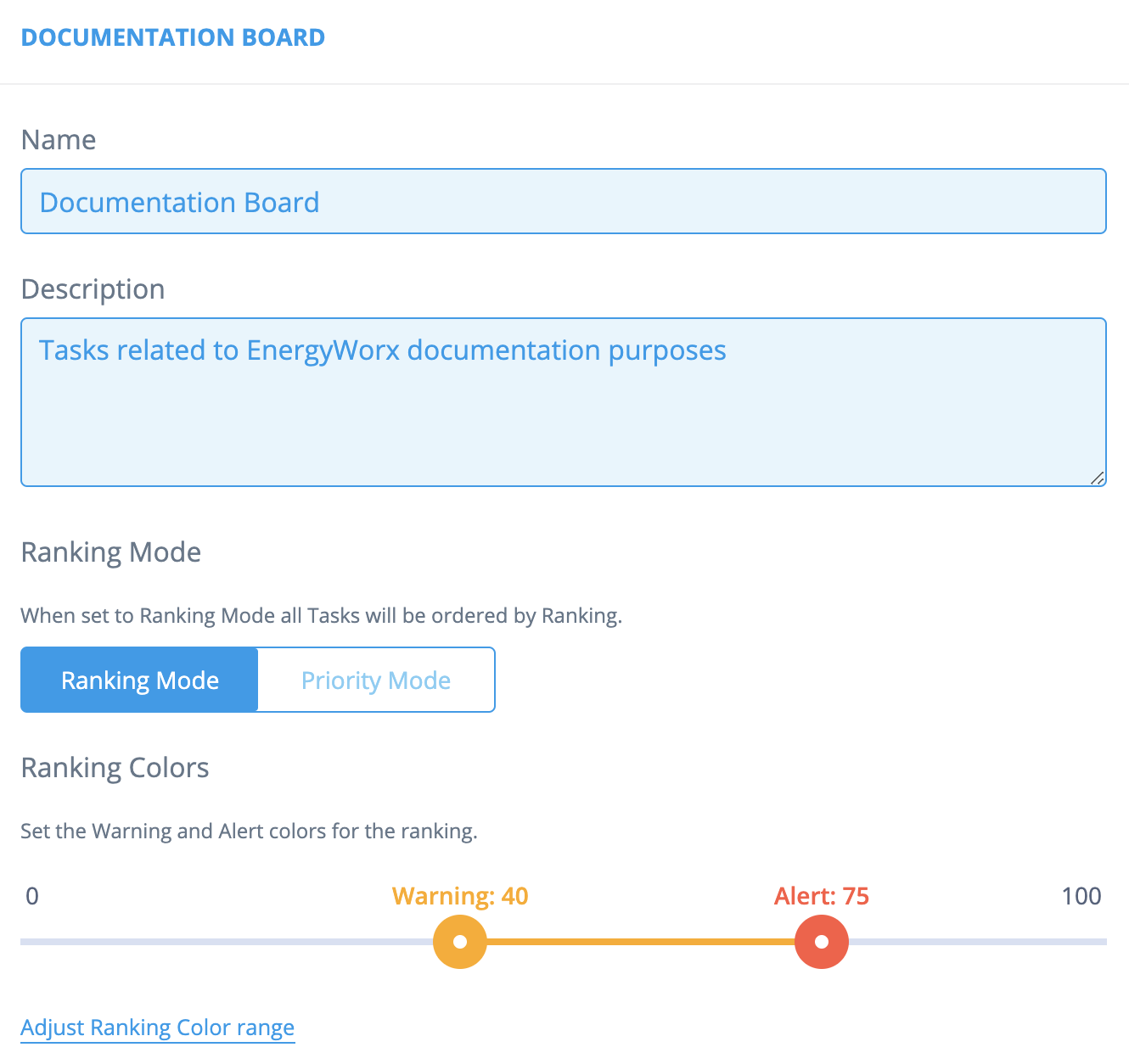
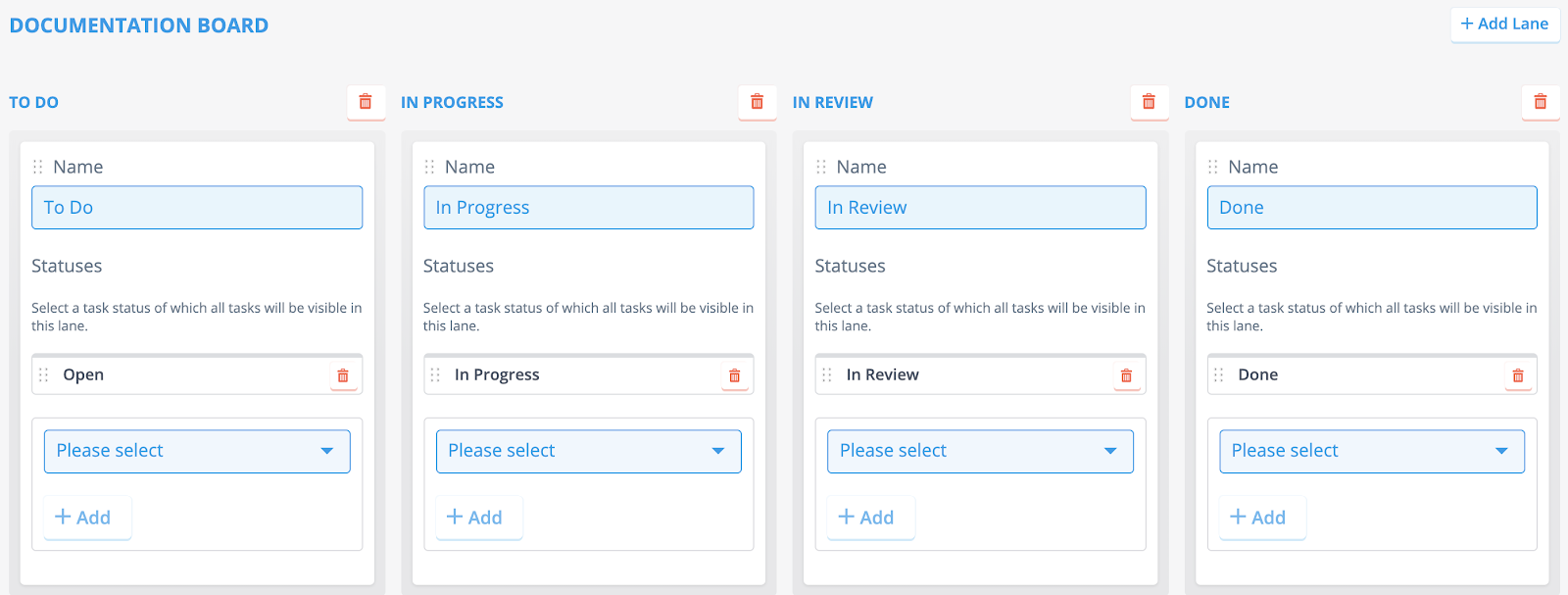
You can easily change the status of your tasks by dragging and dropping them into another lane. When your board is set up in Priority Mode, you can also change the order of the tasks in the lanes. However, when you’re using the Ranking Mode this option isn’t available.
How to create a task from a flow
Deprecation notice
This method for creating tasks will be eventually deprecated. The new way to create tasks is explained in How to create a task from a rule.
In this section you will learn how to create a task from a flow. This guide assumes you have already configured a taskboard in the sections above.
How to
3 steps to take to configure a flow to create a task:
- Create a new rule. Inside this rule, you need to do at least the following:
- Add a parameter with Widget Type ‘AlertThreshold’. Make sure to set the step to 1. You can keep the rest of the settings to default settings.
- In the rule, make sure to add an annotation whenever you want to write a task. Example code to create a single annotation:
    from energyworx.rules.base_rule import AbstractRule
    from energyworx.domain import RuleResult
    import pandas as pd

    class TestRule(AbstractRule):
       def apply(self, **kwargs):
           fake_annotations = pd.Series(
                index=pd.date_range(pd.to_datetime('2023-01-01 09:00:00'),
                periods=1, freq='15T', tz='utc'),
                data=[`{'fake_annotation': 'fake_value'}`], name='datafilter_annotations')
           self.store_annotations(fake_annotations, 'TRIGGER')
           return RuleResult(fake_annotations)
- Create a new flow, or edit an existing flow. Inside this flow, you need to do at least the following:
- Add your new rule from step 1.
- Click settings of the rule:
- Change the Error threshold to the value whenever you want to write a task, probably 1
- Click save
- In the flow, you need to configure the task:
- In the top right of the menu, click the button ‘Configure Task’.
- Setup your task.
- When done, press Apply. In the flow, press Save.
- That's it! When you run this flow on a datasource, a task is created